
Presentation Preflight / offline PowerPoint utility
Check your PowerPoint fonts.
Review the deck before sharing.
Combining slides from several sources? Inspect the file’s declared fonts, explicit text sizes and selected sharing risks. Export a review report, or save selected font replacements into a separate PPTX copy.
$29 USD, one-time. Price checked October 3, 2026; taxes and final terms are confirmed at Gumroad checkout. No AI subscription is needed to use the app.
This is our own product: CourseProfit Lab and Story Systems Studio share the same owner. We benefit from sales. Commercial disclosure.
Free troubleshooting / start with your existing tools
Why do PowerPoint fonts change on another computer?
A font named in a PPTX is not proof that the recipient can use it. An unavailable font can be substituted, changing the result. Preflight inventories declarations in the package, including themes and unused layouts; it does not establish which fonts are installed, successfully embedded or actually rendered on another device.
First check the recipient’s font environment.
Microsoft’s cloud-font documentation requires supported Office versions, a Microsoft 365 subscription and an internet connection to obtain the fonts; Windows also needs the relevant connected-experience setting. Do not assume an offline classroom computer has downloaded them. Test the intended device under its real network conditions.
Replace a font when changing the design is acceptable.
In desktop Windows PowerPoint, use Home → Replace → Replace Fonts. For theme-level changes, use Slide Master; a deck with several masters needs each relevant master checked. Microsoft’s font-change instructions distinguish these desktop controls from PowerPoint for the web. Save a copy and inspect wrapping, bullets, symbols and text boxes after the change. A replacement is not a promise of identical layout.
Embed a permitted font when the recipient needs the original typeface.
Microsoft’s embedding guide describes Windows File → Options → Save → Embed fonts in the file. For later editing, include all characters rather than only those already used. Embedding can increase file size, and some fonts prohibit or restrict it; check the font’s embeddability and your app/version. Do not redistribute a font file or change its restrictions as a workaround.
Preflight does not embed or install fonts. If embedding is unavailable or fails, use a suitable replacement or a checked viewing copy instead. Reopen the saved file on the target device; a successful save alone is not a recipient-side test.
Example decision, not a tested customer result: a learner who must edit the PPTX needs an editable-font workflow. A learner who only needs a static handout may prefer a checked PDF. Neither a font-name list nor a screenshot of your editor verifies the delivered file.
Check the actual PPTX or PDF you plan to share, then compare the utility with PowerPoint’s existing controls. No purchase, account or file upload is required to read these steps.
A hidden slide is not a removed slide.
The sharing copy needs its own review. Hiding a slide changes slideshow delivery; it does not delete that slide from a PPTX. Decide separately whether to retain notes, comments, backup slides, embedded objects and personal properties. Preserve the original and work on a named copy.
For an editable PowerPoint file
On Windows desktop PowerPoint, File → Info → Check for Issues → Inspect Document opens Document Inspector. Review the findings before removing chosen categories, then inspect again. Removed material may not be recoverable with Undo.
Microsoft documents gaps: covered objects, animated off-slide objects and pictures in notes need manual attention. Embedded files can contain additional data and are not automatically removed. Manually review hidden slides too. Inspector is not a complete privacy or security certification.
For a static PDF handout
In Windows PowerPoint’s PDF export options, check the slide range, output type and inclusion of hidden slides, comments and document properties. macOS has different export options; Microsoft documents a hyperlink limitation for its desktop PDF export. Test the resulting links rather than assume they survived.
Inspect the PDF itself. A PDF is not an editable PPTX, and conversion is not automatic redaction or an accessibility certificate. Use your organization’s approved handling rules for confidential material; this page asks for no upload.
Record a delivery check, not just “looks fine”.
- Identify the exact saved filename, format, intended audience and viewer/device. Keep it distinct from the source.
- Check all delivered slides or pages, including line wraps, symbols, readable text and retained content.
- Test links and required media in the delivered format. If editing is required, try an actual edit in the intended app.
- Record what you inspected and any unresolved limitation. A clean file-level report does not replace this review.
Use the free rehearsal record’s sharing-copy prompt for a manual record. If you want a repeatable package-level report as well, inspect the real fictional-sample output first. The paid utility does not render slides, remove hidden content or prove font availability.
Going live is a separate check. Check the audience view, presenter notes and sharing selection before the session. A file-level report cannot see your active display, meeting window or audio route.
Free accessibility workflow / separate from the font report
A font report is not an accessibility check.
In the documented Windows PowerPoint workflow, start with Review → Check Accessibility. Microsoft’s presentation accessibility guidance pairs the checker with manual review. App versions and controls differ; use the instructions for your edition.
- Titles and sequence: give slides distinct titles. Where available, open the Reading Order pane through the checker’s reading-order warning and Verify object order action. Its numbered list is the reading sequence, not necessarily the visual position. Reordering overlapping objects can change the layout; grouping animated objects can lose animation. Recheck the slide after changes.
- Meaningful visuals: review image descriptions, including automatically generated alt text. Mark only non-informative decoration as decorative. Do not hide a meaningful diagram from the reading sequence merely to remove a warning.
- Manual checks: inspect contrast, descriptive link text and captions where needed. Microsoft notes that the checker misses contrast in transparent text boxes over slide backgrounds and in non-text content. A warning-free result is not complete verification.
- Delivered format: try the final slides with a screen reader in the intended workflow. For a PDF, fix the source first and follow Microsoft’s tagged PDF export instructions. On Windows, check Document structure tags for accessibility in the PDF save options. Reopen the actual PDF and check navigation and links; tags alone are not a certificate.
Does macOS accessible PDF export stay offline?
Microsoft’s documented macOS option, Best for electronic distribution and accessibility, uses its online conversion service. PowerPoint sends the document to Microsoft for conversion. Use only an organization-approved route for confidential files; do not assume this option is offline. The documented route does not accept opening-password or rights-managed PowerPoint files. Do not remove protection to force export.
Can an 18-point font prompt prove a slide is accessible?
No. Preflight’s explicit-size and word-count prompts are package-level review signals, not tests of reading order, image meaning, contrast, captions or assistive-technology behavior. Its sample report does not establish that an actual deck meets accessibility requirements. Use the free built-in and manual checks when accessibility is the task; do not buy this utility for certification.
Keep a manual review record.
File/version and delivery format:
PowerPoint and viewer versions:
Checks performed and slide/page numbers:
Changes made and final-copy recheck:
Unresolved issues and delivery decision:
These are blank editorial prompts, not a tested customer result, compliance certificate or output from the paid app. Fill in a local document or on paper; no account, purchase or upload is required.
Accessibility documentation checked October 4, 2026. This is source-based guidance, not a screen-reader test of a presentation or a new product release. Keep the rehearsal and sharing-copy record alongside this review.
01 / See what you receive
The actual application. Not a concept image.
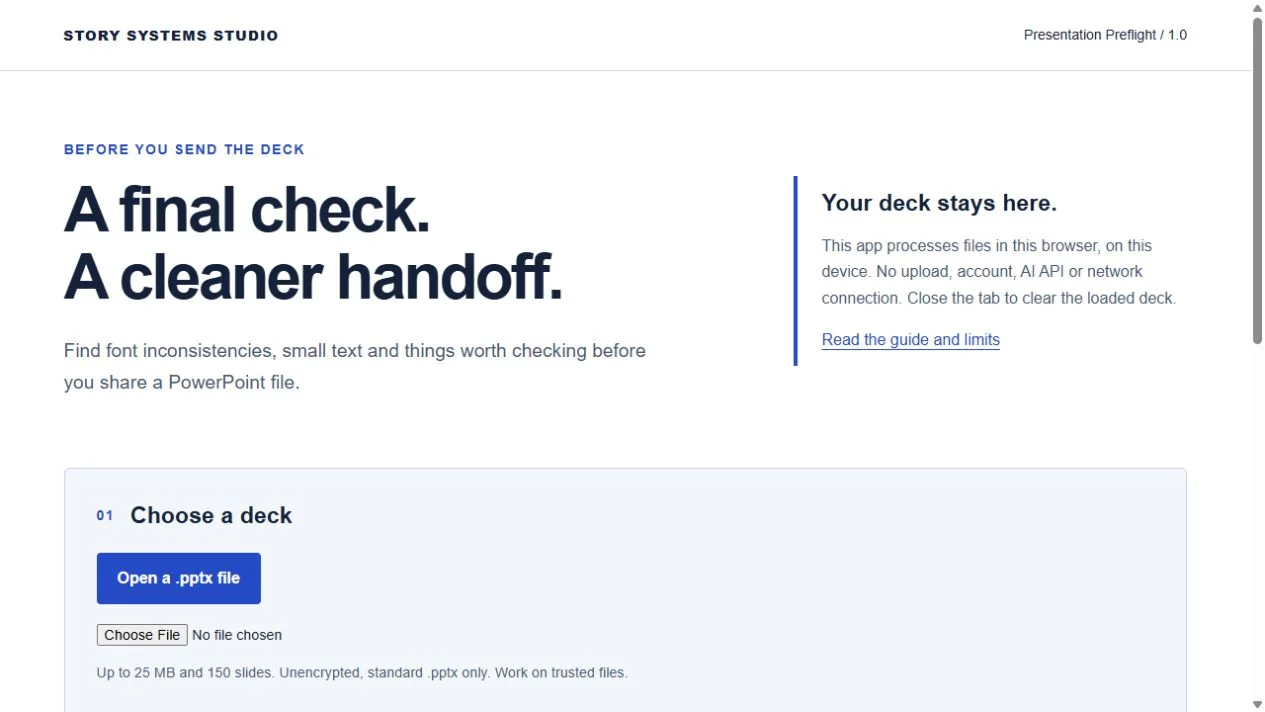
The download includes an HTML app, bundled libraries, two editable practice decks and a guide. Extract the ZIP and open index.html in current desktop Chrome or Edge. Normal file processing stays on your device; the app does not upload your deck.
02 / Inspect the output for free
A real report from the included practice deck.
We ran the unchanged v1.0 analysis code against practice-font-review.pptx, the deliberately inconsistent, fictional sample included with the product. The sample is not a customer case or evidence of business results.
4slides
5declared Latin font families
8review prompts
Thresholds: explicit text below 18 pt; editable slide text above 90 words. A prompt is a reason to review, not proof of an error. It is not a quality score. Font declarations can come from unused themes and layouts.
Exact excerpts from the generated text report
[Sharing] Slide 4: Hidden slide
A hidden slide still travels inside the PowerPoint file.
Decide whether the recipient should receive it.

FONT DECLARATIONS (including themes and unused layouts)
Georgia: 6 declarations in 1 part(s)
Verdana: 6 declarations in 1 part(s)
Download the complete sample report (.txt, free)
How this example was verified
The report was generated locally from the unchanged customer release. The screenshot above shows the genuine start screen; the report is the analysis code’s actual output. This verifies the sample’s package analysis and export logic, not an end-to-end browser file-opening or cross-browser compatibility test.
Read the evidence / decide the next check
What do the sample’s eight prompts actually tell you?
The unchanged report contains 1 + 4 + 1 + 1 + 1 review signals, not eight proven defects. Use each signal to choose a manual check.
On a narrow screen, focus this table and use the left and right arrow keys. Press Tab to continue to the explanation below.
| Reported signal | Prompt count | Useful check before changing the deck |
|---|---|---|
| Several font families declared | 1 | Five Latin families include theme and unused-layout declarations. Check actual use and rendering before changing fonts. |
| Small explicit text size | 4, one per slide | 13.5 pt appears on all four slides; 17.25 pt on 1, 3 and 4. Footnotes and paragraph defaults count; inherited sizes are not resolved. Check readability at the intended distance. |
| Hidden slide | 1, slide 4 | Slide 4 remains in the file. Decide whether the recipient should receive it; inspect the sharing copy. |
| Speaker-note parts included | 1, for the deck | Four parts may contain slide numbers or private notes. Inspect their content; the utility does not remove notes. |
| Creator or last-editor metadata present | 1, for the deck | Optional cleanup clears only those two fields: not complete anonymization. Review other metadata, comments and hidden content separately. |
Does eight prompts mean eight changes are required?
No. A footnote, unused font or backup slide may be intentional. Record each decision, preserve the source and visually recheck changes. Fewer prompts do not prove a better presentation.
The sample’s 24, 43, 29 and 34 editable words stay below 90: no word-count prompt. This does not establish low visual density. There is no OCR or complete chart/SmartArt text inventory.
Use the free PowerPoint review tools and free rehearsal and sharing record. The paid app adds package inventory and selected font edits; it does not render slides or replace judgment.
03 / Understand the change
Selective font cleanup, with a separate copy.
Before
The sample declares Arial, Calibri, Calibri Light, Georgia and Verdana. We selected only Georgia and Verdana, with Arial as the replacement.
After
The code replaced 12 Latin-font declarations. The resulting inventory lists Arial, Calibri and Calibri Light. The source deck remained unchanged.
The check also confirmed the same slide titles, word counts, explicit sizes and hidden-slide status after replacement. These package-level checks are not proof that the visual layout is unchanged.
Different fonts have different widths. Open the exported copy in PowerPoint and inspect every slide for wrapping and layout changes. This tool does not render slides, fix overlap or perform automatic redesign.
04 / Decide whether you need it
PowerPoint already does some of this.
Do not buy a separate utility just to change one font. Desktop PowerPoint has Replace Fonts, Slide Master controls and a Document Inspector. Start with the tools you already have; the free font-portability steps explain what a declared font name cannot prove.
Using video in the lesson? Use the free embedded, linked and online-video checks. This utility's local processing does not establish that a video plays offline or that the delivered slide show's sound works.
If all columns do not fit, scroll this comparison sideways. Keyboard: Tab to the comparison, then use the left and right arrow keys.
| Your task | Existing PowerPoint options | Presentation Preflight v1.0 |
|---|---|---|
| Replace a font | Use Replace Fonts or edit Slide Master fonts. | Select named Latin-font declarations and export a separate copy. Not a unique font-replacement capability. |
| Keep fonts available to a recipient | Check supported cloud fonts or permitted embedding, then test the recipient’s workflow. | Does not embed fonts, install them or verify recipient-side availability. A declaration is not a rendered-font check. |
| Review hidden or personal content | Document Inspector provides a broader review and removal options. | Flags notes, comments, hidden slides and selected metadata. Does not remove those contents or fully anonymize a file. |
| Review accessibility | Use Accessibility Checker plus reading-order, description and delivered-format checks. | Does not certify accessibility. Font sizes and word counts are review prompts, not an assistive-technology test. |
| Check the live audience view | Use Presenter View and an actual audience-display or meeting-share check. | Cannot inspect the active display, sharing selection or computer audio. A file report does not verify a live session. |
| Verify video playback dependencies | Identify embedded, linked or online video and test the actual slide show on the intended device. | Offline file analysis is not a media-playback test or proof that an online video works without internet. |
| Keep a repeatable review report | You can conduct a manual review with PowerPoint’s existing controls. | Exports a plain-text font inventory, slide inventory and selected file-level prompts. |
| Check a small set of decks | Review each deck using your existing workflow. | Creates one combined report for up to 10 decks and 100 MB total. Batch mode does not edit presentations. |
Potentially useful if…
You regularly combine PPTX material for courses, workshops or client work and want a local, repeatable report alongside your visual review.
Skip it if…
You only need a one-off font change, use Google Slides without a PPTX workflow, or expect an AI designer, visual quality score or privacy certification.
Does a .pptx filename mean this tool can check everything?
No. Microsoft lists standard PowerPoint presentations, Strict Open XML presentations and picture presentations with the same .pptx extension. The format and the content matter. This utility accepts only its documented subset; a filename alone does not establish compatibility or a complete review.
If all columns do not fit, scroll this format check sideways. Keyboard: Tab to the table, then use the left and right arrow keys.
| Your file or content | This utility’s boundary | Useful next step |
|---|---|---|
| Standard, unencrypted .pptx | Eligible for package analysis within the documented limits, not a guarantee that every file will load or every problem will be found. | Check the report alongside the actual slides in PowerPoint. Keep a separate source copy. |
| Strict Open XML .pptx | Rejected: it uses presentation namespaces this version does not support. | Use your existing PowerPoint review workflow. A .pptx suffix does not distinguish Strict from standard. |
| Picture slides, charts or SmartArt | No OCR. Editable slide-text counts do not count words inside images or provide a complete chart/SmartArt text inventory. | Read the visible content manually. Few or zero editable words does not mean a slide contains little visible text. |
| .ppt, .pptm, .potx, .ppsx, .odp or PDF | Not accepted as-is. Changing the filename extension is not format conversion. | Review in an appropriate existing app. For a trusted legacy .ppt, see the copy-and-recheck steps below; conversion is not proof of tool compatibility. |
| Password-protected, digitally signed or macro-bearing packages | Rejected, including unsupported content inside a renamed .pptx. | Follow the file owner’s approved workflow. Do not remove passwords, signatures or macros just to get a file through this utility. |
If you already have an authorized legacy .ppt workflow
For a trusted file you are permitted to convert, Microsoft’s legacy conversion instructions use File → Save As → Browse → PowerPoint Presentation (*.pptx). Preserve the original, save a separate copy, reopen it and check the layout and content. Do not use this as a protection or macro workaround; skip the utility when the approved workflow needs a different format.
An image-only slide can be intentional. Microsoft’s Picture Presentation format turns slides into pictures and can lose information; do not flatten an editable deck just to reduce report findings. This tool does not render slides, recognize text in pictures or certify accessibility.
Use the free delivered-file review steps, or record a manual rehearsal and sharing check. No purchase or upload is needed for either.
Check the fit before buying.
- Supported workflow
- Current desktop Chrome or Edge; standard unencrypted .pptx; PowerPoint for final visual review. PowerPoint itself is not included.
- Per-file limits
- 25 MB and 150 slides, plus package limits documented in the included guide. Password-protected, signed, macro-bearing and Strict OOXML files are rejected.
- Not certified
- Mobile, Mac PowerPoint, Google Slides and Keynote compatibility. No accessibility, security, design-quality or complete anonymization certification.
- License
- One individual may use the utility for their own business and client presentations. No redistribution or public hosting of the app or unmodified sample pack. Confirm the exact license and refund policy on Gumroad.
- What the purchase includes
- Offline app, editable example and practice decks, text-report export, guides and license. Batch review supports up to 10 decks and 100 MB total. No custom redesign, live calls or guaranteed response time.
Inspect the offer, then decide.
Gumroad handles checkout and download delivery for Story Systems Studio. CourseProfit Lab does not collect payment details here. No presentation, traffic or revenue outcome is promised.
View the $29 download on GumroadSources and evidence
Font replacement, embedding, cloud-font conditions, Inspector gaps and PDF export documentation checked October 4, 2026. The original demonstration was verified October 3 using the existing Presentation Preflight v1.0 package; it is not a new customer-file release or a test of an uploaded deck. These sources support specific software steps, not measured search volume, product demand or guaranteed delivery.
- Microsoft: change the fonts in a presentation
- Microsoft: remove personal information from your presentation
- Microsoft: font embedding and its restrictions
- Microsoft: cloud-font requirements
- Microsoft: Inspector findings and removal gaps
- Microsoft: platform-specific PDF export options
The file-format and legacy-conversion documentation was also checked October 4, 2026, against this version’s existing analysis code. This was a source inspection, not a new presentation-file or browser upload test.
- Microsoft: PowerPoint formats, including Strict and picture presentations
- Microsoft: preserve and recheck a converted legacy presentation
- Microsoft: renaming an extension does not convert a file
The eight-prompt interpretation was added October 6, 2026 using the existing public October 3 report. Its bytes and sample results are unchanged; this is an explanation of existing evidence, not a new file-opening or upload test.
Preparing the whole session? Use the free teaching presentation checklist and rehearsal example before the final deck check.
Explore the other creator resources, or use our free course-business calculators if platform costs are your current question.